
Since 23 September, MYX has posted a weekly series of short videos on LinkedIn. Each one shows a single tool of the MYX Twin Viewer, the viewer where your team opens a site's digital twin and works on it. The series ran to 10 videos: an opener, 8 tool episodes and a bonus. Together they show what a tower operator gets out of a twin day to day: every image of the site in 1 place, elevations and distances measured on the model rather than from a climb, the site files stored next to the structure, and an equipment inventory built on the model itself. This post collects all 10 episodes, with a link to each video.
All 10 Episodes
Each link opens the LinkedIn post with the video.
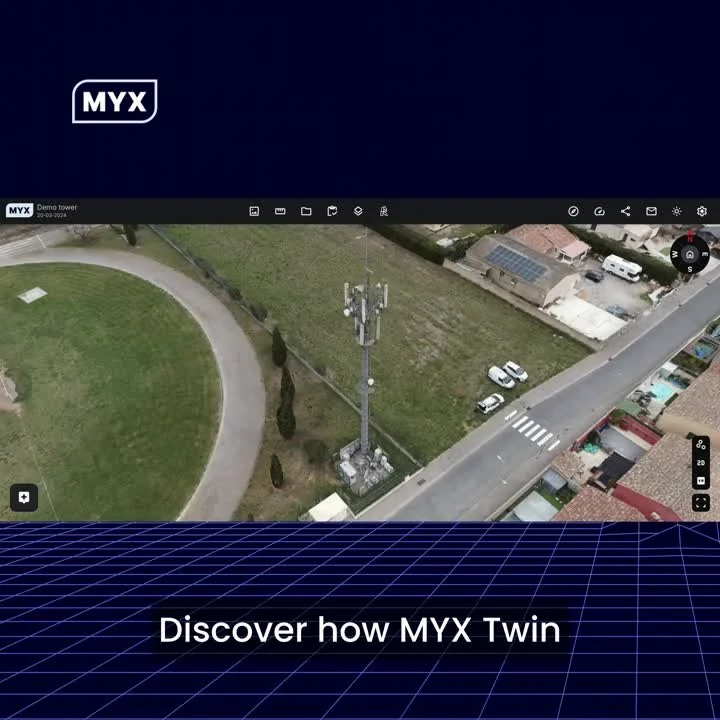
Series opener: a first tour of the viewer: the Gaussian splatting viewer, 360 groundwalks, multilingual support, image inspection, overlays, Revit integration and live AI chat.
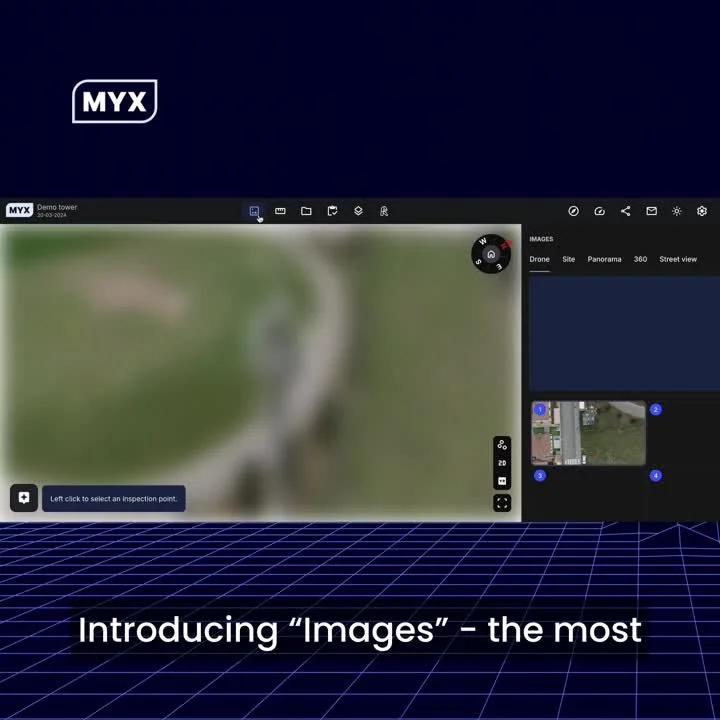
Images: drone images, ground photos, panoramic views, 360 walkthroughs and Google Street View in a single platform.
Google Photorealistic 3D Tiles: your 3D model set in Google's photorealistic environment, with measurements across the model and the Google world, plus the Gaussian Splat Viewer for cables, steel profiles and reflective surfaces.
Annotations and Measurements: points, lines and shapes marked on the model, with length, perimeter, area and volume calculated automatically.
Premium Measurements: 2D measurement with millimetre precision, and custom reference points for daily elevation and distance checks.
Documents: storage, search and preview of all site files, from engineering plans to reports and images, with folder uploads that keep their structure and search inside file contents.
Revit: multiple 3D drawings explored, measured and browsed in the Autodesk viewer, connected to the 3D model.
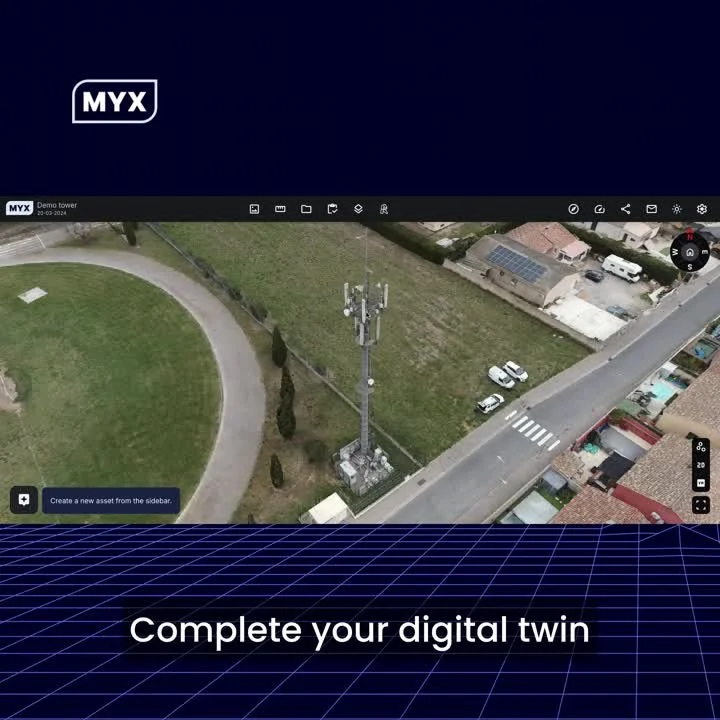
Overlay: 2D overlays for site borders, neighbouring buildings and operator coverage, and 3D overlays that place cranes or vehicles and simulate electromagnetic fields around antennas.
Inventory: assets marked and created on the 3D model, with machine learning helping to detect telecom equipment on the structure.
AI Chat and Share Links: questions to the twin in natural language, measurements and simple report tables from the model, and share links with viewer, editor or custom permissions, an expiry date and no login for recipients.
How the Tools Fit Together
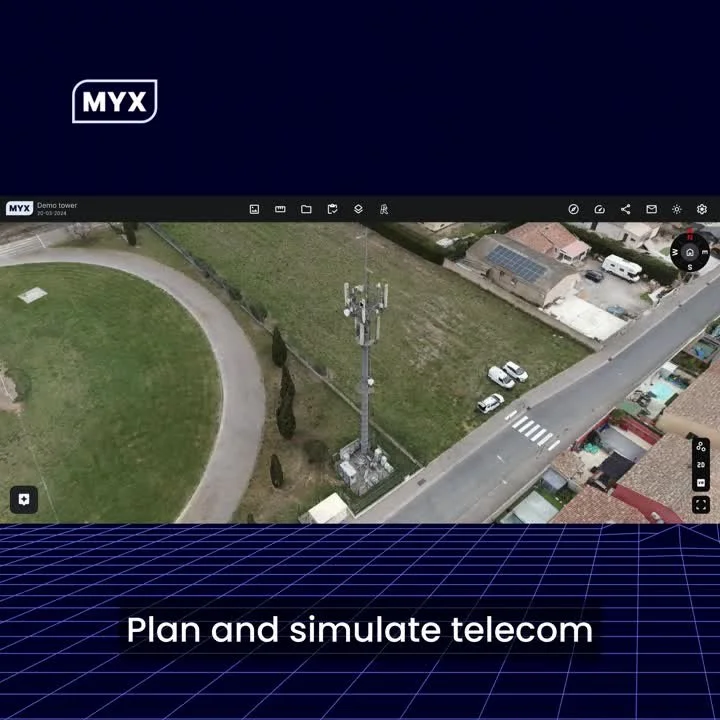
A routine check runs through several tools at once. The Images tool puts the latest drone and ground photos on the model. The measurement tools give the antenna elevation and the distances around it without a climb. The Overlay tool simulates the electromagnetic field around the antennas on the same structure. Inventory lists the equipment the detection found on the model. The Documents tool keeps the site files beside it. When a colleague needs to look, a share link opens the model for them without a login.
Who Opens the Twin
A site is captured once and modeled once. After that the viewer is where the work happens, and the people opening it are often not 3D specialists. A lease manager and a field crew need the same twin for different reasons. Engineers get the Revit tool, so their 3D drawings sit in the Autodesk viewer next to the model. Google Photorealistic 3D Tiles put the site in its surroundings. None of these tools is spectacular on its own. Together they change who can use a digital twin.
See It on Your Own Sites
All 10 episodes are on the MYX LinkedIn page. The best test is a site you already know, with your own photos and your own documents on the model. To see it on your own sites, schedule a demo.
Also from MYX: MYX Analyzer turns tower leases and site documents into structured data. Try it free on one lease, no signup, no card.